
Skip to content
For people who are deaf or hard of hearing

Read the joke when the room laughs.

LiteScribe puts live captions on your phone and your computer, in very large text with a colour for each voice. Keep your eyes on the people you are with, look down only when you miss something, and find a summary waiting afterwards.

  • iPhone, Android and computer
  • A colour and a name for each voice
  • Unlimited on your phone with Pro and Business
A woman in a blue beanie laughing, sitting on a sofa at home
Lena
A man with curly hair and glasses smiling, standing by a window
Tom
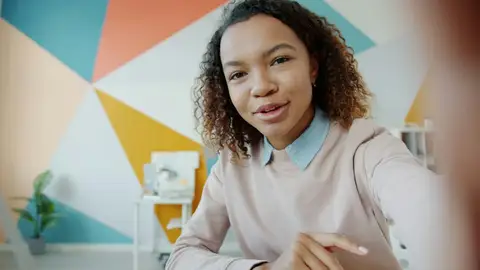
A woman with curly hair talking and gesturing with one hand
Zoe
  • Look up, not downKeep eye contact and read lips. The phone is there for the moment you miss.
  • Easy to find your placeVery large text, a colour and a name for each voice.
  • Unlimited on your phoneCaptions made on the phone itself, with Pro and Business.
  • Catch up laterA summary and answers once the conversation is over.
Ten situations

Where is it hardest to follow? Start there.

The table comes first, because that is where people told us they miss the most. Each situation says what is hard, what LiteScribe does about it, and which features do the work.

Eating outMost asked for

Restaurant or café

The hard partClatter, music and fast talk. Looking down at a phone means losing the lips and looking absent.

How LiteScribe helpsProp the phone by your plate and look down only when you miss something. The newest words are very large and each voice has its own colour, so you find your place in a second. Captions made on your phone keep going when the signal does not.

At home

Family meals

The hard partEveryone talks at once, across the table, and the stories move on before you can ask.

How LiteScribe helpsEach voice starts its own line in its own colour. Tap a line once to give it a first name, and every line from that voice carries it. Keep the evenings in a Sunday dinners collection and ask later who is bringing what.

A woman with curly hair talking and gesturing with one hand
ZoeEaster is at mine this year. Bring chairs.
Going out

Out with friends

The hard partThe whole table laughs, and you smile along without knowing why.

How LiteScribe helpsRead the joke when the room laughs. The line is on your screen as it lands, and you can scroll back for the set-up. Lost the thread? Tap Catch me up for two lines on what everyone is talking about right now.

A man with curly hair and glasses smiling, standing by a window
TomHe parked it perfectly. In the wrong city.
At work

Work meetings

The hard partFollowing the room and taking notes at once, with names and product terms flying past.

How LiteScribe helpsRead live, with client names and product terms from your dictionary spelt your way in cloud captions, and leave the notes to LiteScribe. The summary, decisions and action items arrive when the meeting ends.

On a call

Calls and video meetings

The hard partNo lips to read, poor audio, and built-in captions that differ in every app.

How LiteScribe helpsOne captions window floats over Teams, Zoom or Google Meet on your computer. Move it under the speaker's face. On Windows and Mac it is hidden from screen shares.

In class

Classes and lectures

The hard partThree hours of a teacher who turns to the board, and notes you cannot take while reading.

How LiteScribe helpsFollow live in very large text, scroll back when you miss a term, then tap Back to live. Afterwards, read the summary and ask questions across the whole course.

In the audience

Panels, talks and community events

The hard partThe speaker is far away, there is no caption screen, and panellists interrupt each other.

How LiteScribe helpsPut your phone where it hears the loudspeakers. Each voice gets its own colour, and Catch me up tells you where the talk has got to if you looked away.

On the sofa

TV and video

The hard partClips, streams and voice messages with no subtitles at all.

How LiteScribe helpsOn your computer, the captions window sits over any video that is playing. On Android, captions made on your phone can float over the app you are watching.

Out and about

Appointments and counters

The hard partOne chance to catch the instructions, from someone behind a screen or a mask.

How LiteScribe helpsFlip the screen so the other person can read what was understood, or split it face to face. Save the text when you press Stop and the instructions are there to reread at home.

Any roomNot only hearing

When listening and writing at once is hard

The hard partWith dyslexia, a second language or a tired brain, you can follow or you can take notes. Not both.

How LiteScribe helpsBe present now, catch up later. Listen and take part. LiteScribe keeps the words, writes the summary and finds any detail when you ask.

Four ways to read along

Captions wherever the conversation is.

At the table, in the car, at the counter

  • Very large text and three high-contrast themes
  • A colour and a name for each voice
  • Flip it for the person opposite, or split it face to face
  • Made on the phone itself where your phone supports it, with no connection needed
  • Unlimited on your phone with Pro and Business
See the Captions screen
Compare the modes

Pick the one that fits the moment.

Captions made on your phone Cloud captions Desktop window Over other apps Room mode soon
Best forRestaurants, family, friends, appointmentsConversations that move between languagesTeams, Zoom and Google MeetVideo, streams and voice messagesNoisy tables of 2 to 8 people
What you seeFull screen, very large textFull screen, a colour and a name for each voiceA window floating over the callA caption bar over what is playingEveryone's words, labelled by phone
InternetNot neededNeededNeeded for cloud captions, not in Local ModeNot needed on Android (made on the phone)Needed
LanguagesOne language, chosen before you start: 10 on iPhone, 7 on Android60, or Auto-detect60, or Auto-detectThe on-phone languagesTo be confirmed
AfterwardsSave the text, the text and audio, save and name speakers, or discardKept in your library with a summarySummary and action itemsKept in your libraryThe host chooses
PlanUnlimited with Pro and BusinessUses your live minutesCloud uses your live minutes; Local Mode does notUnlimited with Pro and BusinessComing soon

Swipe the table sideways to see every mode.

The features, by name

What does the work in each situation.

Made to be read
Very large text, three themes at the AAA contrast level, Flipped and Face to face views, scroll back then Back to live.
In: Restaurant or café, Classes and lectures, Appointments
Catch me up
Looked away? One tap tells you what is being said right now, or sums up the conversation so far.
In: Out with friends, Classes and lectures, Talks and events
Names for voices
Each voice gets a colour. Tap a line to name it. People who agree can save their voice, so LiteScribe names them in your transcripts, live on the desktop and in captions made on your phone.
In: Family meals, Work meetings
Captions on your phone
Made on the phone itself, so they keep going without a connection. Unlimited with Pro and Business.
In: Restaurant or café, Talks and events
Your dictionary
Add the names, places and brands that matter to you once, and cloud captions and transcripts spell them your way.
In: Work meetings, Calls and video meetings
Desktop captions window
Floats over calls on Windows, Mac and Linux. Hidden from screen shares on Windows and Mac.
In: Calls and video meetings, TV and video
Captions over other apps
On your computer, the captions window stays on top of any video. On Android, captions made on your phone float over your other apps.
In: TV and video
Hearing aids and remote mics
Your hearing aids keep their own sound while LiteScribe captions from the phone. On a computer, choose your remote-mic receiver (such as Roger or NeckLoop) as the microphone.
In: Restaurant or café
Save or discard
When you press Stop you choose what is kept: the text, the text and the audio, or nothing. Recordings are never used to train AI.
In: Out with friends, Appointments
Summary afterwards
What was said, what to follow up, and any detail when you ask.
In: Family meals, Work meetings, Listening while writing
Collections
One place per group: Sunday dinners, a course, your team. Ask one question across all of it.
In: Family meals, Work meetings, Classes and lectures
Room modeComing soon
Several phones, one per person, feeding one caption screen. Guests join with a code.
For: Restaurant or café, Family meals

Which languages?

Live captions work in 60 languages. Pick the language, or choose Auto-detect if the conversation moves between them. Captions made on your phone cover 10 languages on iPhone and 7 on Android.

What it costs

Cloud captions use your live minutes, the same as a live transcript. Captions made on your phone are unlimited with Pro and Business. Minute packs and plans add more when you need them.

For associations and support groups

Please share this page with your members. If your association would like to try Captions with a group, write to us and tell us what you need.

Contact us

Questions people ask first

No. Keep your eyes on faces and read lips as you always do. The captions are a safety net: look down when you miss something, find your place by the colour of the voice, and look back up.

Captions made on your phone keep going without a connection, on phones that support it, and they are unlimited with Pro and Business. Cloud captions, the desktop window in cloud mode, and room mode need a connection.

Add the names, places and brands that matter to you to your dictionary once, and cloud captions and your transcripts spell them your way from then on.

Yes. Each voice gets its own colour and its own line. Tap a line to type a first name, and every line from that voice takes it.

Yes. On your phone, LiteScribe listens through the phone's own microphone, so your hearing aids or implant keep their normal sound. On a computer, you can choose a remote-mic receiver such as Roger or NeckLoop as the microphone.

You choose when you press Stop: keep the text, keep the text and the audio, or discard it. What you keep is saved privately in your library with a summary. Recordings are never used to train AI.

Yes. In the LiteScribe desktop app for Windows, Mac and Linux, a captions window floats over Zoom, Teams or Google Meet. It has a text size slider and a light or dark background, and on Windows and Mac it is hidden from screen shares.

Live captions work in 60 languages, plus Auto-detect for a conversation that moves between them. Captions made on your phone, with no connection, cover 10 languages on iPhone and 7 on Android.

It is coming soon. Each person at the table uses their own phone as a microphone, and you read everyone clearly on yours. Guests join with a code, with no app and no account.

Be part of the next conversation.

Get LiteScribe on the device you have with you. Open it, pick Captions, and read along.

Unlimited live captions on your phone, with Pro and Business.

People pictured are models with invented names, not LiteScribe users. Caption lines are examples.