Most meeting notes are written once and never opened again. The decisions are in there somewhere, but finding them means scrolling through an hour of transcript or replaying the recording. If you already use Claude for writing and thinking, there is a faster way: connect your LiteScribe recordings to Claude and ask about them in your own words. Claude finds the right meetings, reads the parts it needs and answers with quotes you can check.
This guide shows how to connect the two, what you can ask, and what Claude can and cannot do with your recordings.
What the connection does
LiteScribe runs a connector that Claude talks to over the Model Context Protocol (MCP), the open standard Claude uses for connectors. When you ask a question, Claude decides which LiteScribe tool to call: search your recordings by words, date, speaker or source, read a summary and its action items, page through the transcript, or find the exact moments that answer a question. LiteScribe runs the tool on your account and sends back the result, and Claude writes the answer.
Every quote comes with the speaker, the time and a link that opens the LiteScribe player at that second, so you can hear the original before you rely on it. The full list of tools is on the Claude connector page.
Connect LiteScribe to Claude in a minute
LiteScribe is listed in the Claude connectors directory, so the quickest way is to find it there by name. You can also add it yourself as a custom connector with the server URL https://mcp.litescribe.ai/mcp. Either way the steps are short:
- In Claude, open Customize, then Connectors.
- Find LiteScribe in the directory, or select + Add, then Add custom connector, and enter the server URL.
- Select Connect, sign in with your LiteScribe account and approve access. Allow changes only if you want Claude to rename recordings, organize collections or create share links.
- In a chat, open the + menu, then Connectors, and switch LiteScribe on.
You add the connector once and it works in every Claude app, including the desktop and mobile apps. It works on every LiteScribe plan, including the free plan, and reading your recordings uses no transcription minutes. If you work in a terminal, the same server works in Claude Code with one command, and the MCP server page has the setup for Cursor, VS Code and other tools.
Questions worth asking
The connector is most useful for questions that span several meetings or need exact wording. A few that work well:
- What did we decide about pricing in last week's calls?
- List my action items from October, grouped by meeting.
- Find where Sarah talked about the launch date and quote her.
- Which customer calls this month mentioned onboarding problems? Give me the timestamps.
- Draft a follow-up email from yesterday's sales call with the next steps we agreed.
- Show me the screenshot from when we talked about the budget.
Because Claude can read more than one recording at a time, it is good at comparisons: what changed between two planning meetings, which objections came up across a week of sales calls, or what a team said about the roadmap in September compared with October. If you group recordings into collections in LiteScribe, Claude can work across a whole collection at once, including its people, companies and open action items.
Screenshots from the meeting
A transcript only captures what was said. In a lot of meetings the important part was on screen: a slide, a chart, a pull request or a contract clause. When you take screenshots during a recording with the LiteScribe desktop app or the Chrome extension, Claude can see those too. It can list the screenshots in a recording with the time each one was taken and what was being said at that moment, and it can open up to ten of them at once as images.
That makes questions like "what were the numbers on the revenue slide?" or "summarize the architecture diagram we reviewed" possible, because Claude reads the image itself, not just the words around it. Transcripts also mark where each screenshot was taken, so Claude can connect what was shown with what was said.
To show how this works, we made a short demo recording: a two-person budget review between Daniel and Maya, with screenshots of the slides they discussed. Here is the second slide, captured at 1:14 when Daniel put the new numbers up.
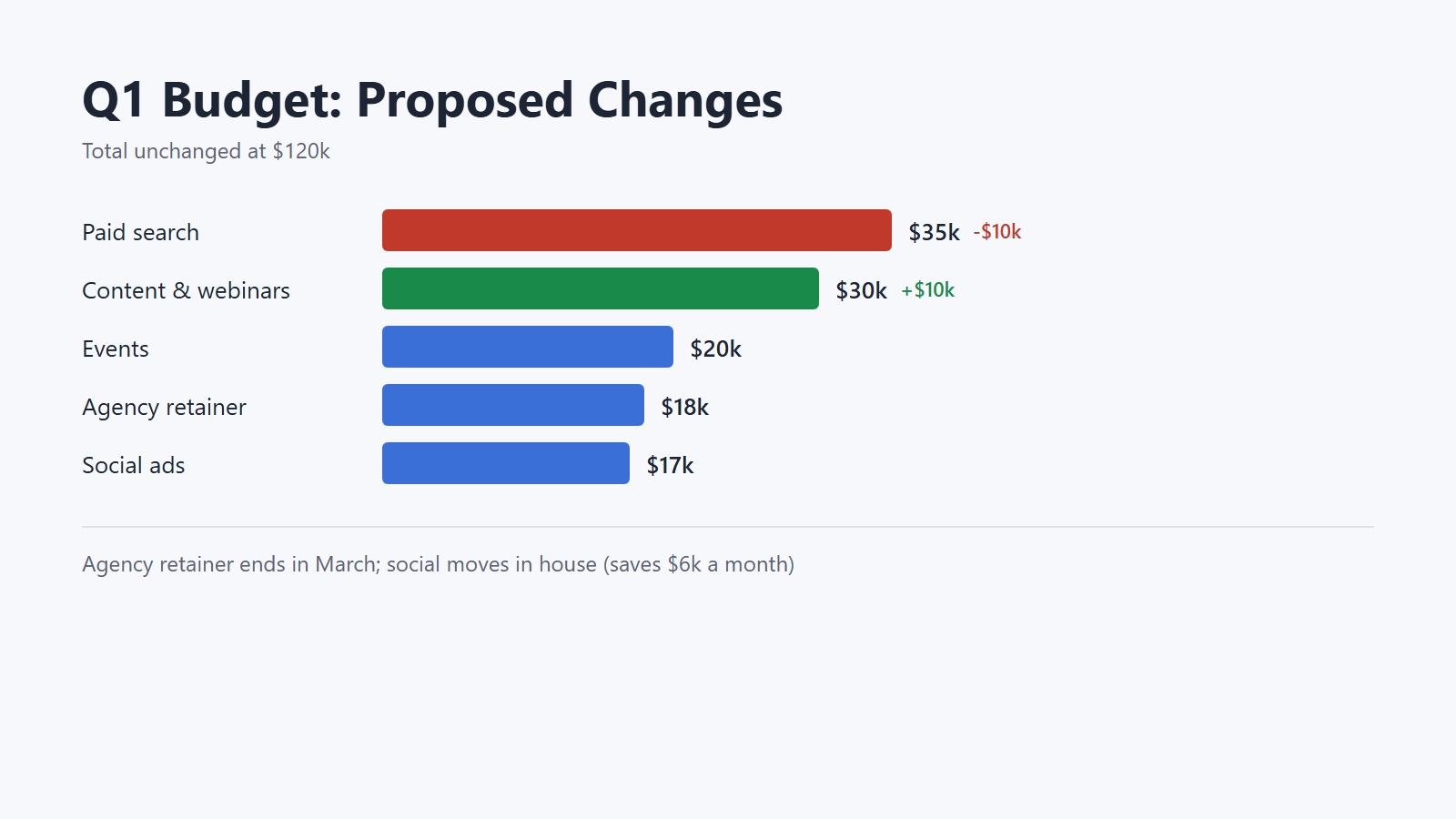
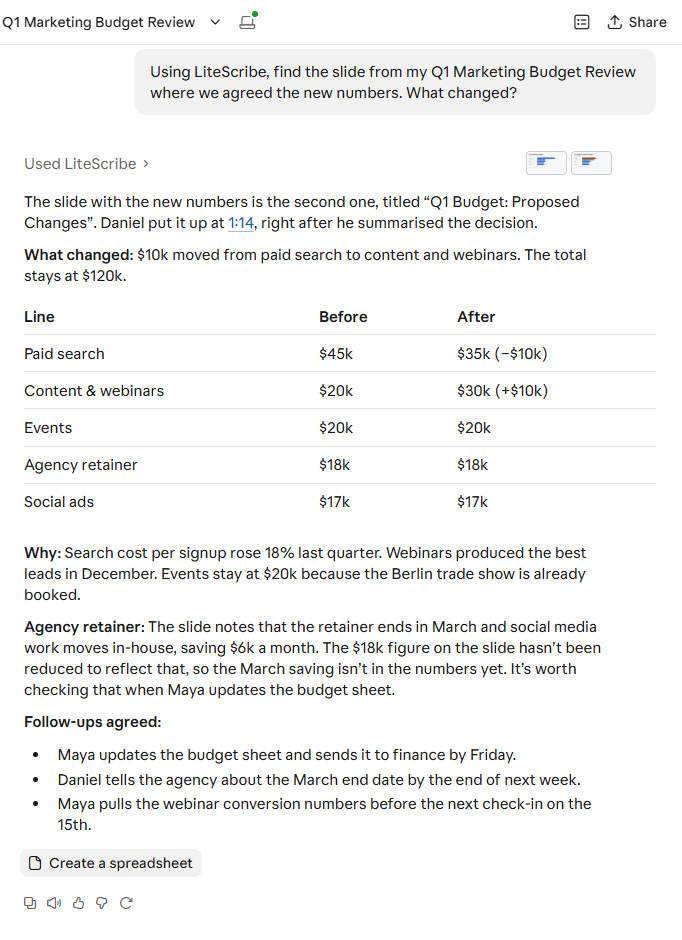
We then asked Claude: "Using LiteScribe, find the slide from my Q1 Marketing Budget Review where we agreed the new numbers. What changed?" Claude listed the screenshots in the recording, opened them, picked the right slide and built a before-and-after table from it. It also spotted something nobody had said out loud: the agency retainer ends in March, but the slide still budgets the full $18k.
Privacy and control
You stay in control of what Claude can do. By default the connection is read-only. The change tools exist only if you allowed changes when you connected, Claude asks before each change, and no tool deletes anything. Local Mode recordings from the desktop app that were never synced stay on your device and are not visible to Claude.
For these requests LiteScribe returns the data Claude asks for and does not send it to its own AI model. LiteScribe does not use your recordings to train AI models. Once Claude has the text, Anthropic's own terms and your Claude privacy settings apply. You can see and disconnect every connected app on the Integrations page in LiteScribe at any time. The details are in the privacy policy.
Not using Claude?
The same connector works in any app that supports remote MCP servers with sign-in. ChatGPT can connect it in developer mode on the web, as described on the ChatGPT page, and coding tools such as Claude Code, Cursor and VS Code connect with the server URL. Your recordings stay in one place, and you can ask about them from whichever assistant you already use.
Frequently asked questions
Does connecting LiteScribe to Claude cost anything?
No. The connector is free on every LiteScribe plan, including the free plan, and reading your recordings uses no transcription minutes. Claude custom connectors are available on every Claude plan, and the free Claude plan allows one custom connector.
Do I need an API key?
No. You sign in with your normal LiteScribe account and approve the connection. Claude handles the short-lived access tokens for you.
Can Claude see the screenshots from my meetings?
Yes. Screenshots taken during a recording with the LiteScribe desktop app or Chrome extension are available to Claude as images, up to ten at a time, along with when each was taken and what was being said.
Can Claude change or delete my recordings?
It cannot delete anything. It can rename a recording, add or remove it from a collection or create a share link only if you allowed changes when you connected, and Claude asks you before each change.
Which recordings can Claude see?
The recordings in your LiteScribe account, from meetings, uploads, the desktop app, the mobile apps, the Chrome extension or YouTube links, in any of the 99 languages LiteScribe transcribes. Local Mode recordings that never synced stay on your device.